> For the complete documentation index, see [llms.txt](https://help.foreverfanmusic.com/llms.txt). Markdown versions of documentation pages are available by appending `.md` to page URLs; this page is available as [Markdown](https://help.foreverfanmusic.com/email-campaigns/the-composer.md).
# The Composer
Building your email from blocks, styling it, and working with the writing assistant.
The composer is where you build the email. You add blocks, arrange them, style the whole thing, and let the assistant help with the words. Your work saves on its own as you go.
## Adding blocks
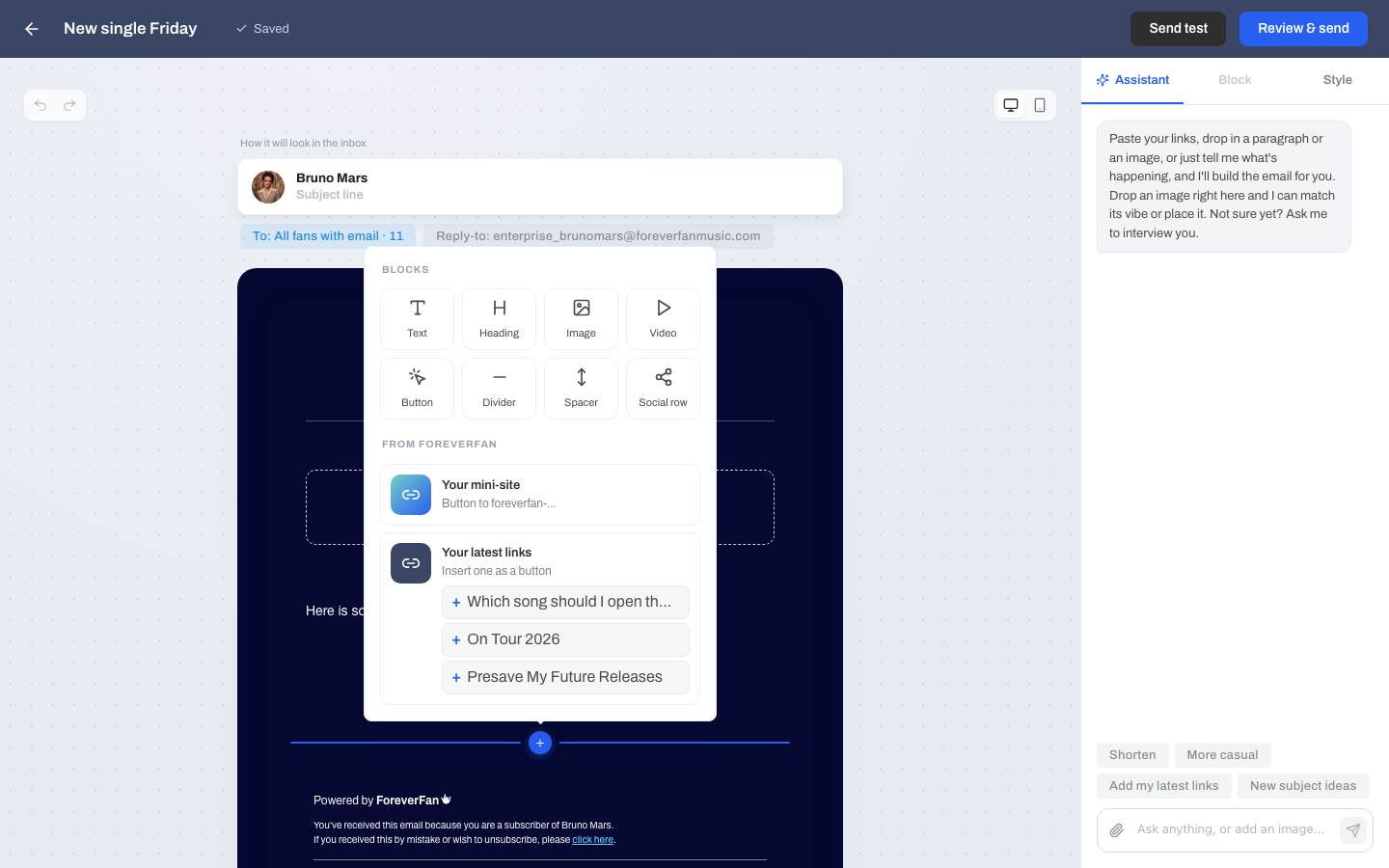
Your email is made of blocks stacked top to bottom. Open the block palette to add one:
* **Text.** A paragraph of writing.
* **Heading.** A larger title line.
* **Image.** A photo you upload.
* **Video.** A YouTube or Vimeo link (see the note below).
* **Button.** A tappable button that links out.
* **Divider.** A horizontal line to break up sections.
* **Spacer.** Empty vertical space.
* **Social row.** A row of social icons that link to your profiles.
### From ForeverFan
The palette also has two smart blocks that pull from your own account, so you do not have to paste links by hand:
* **Your mini-site.** A button that links straight to your mini-site.
* **Your latest links.** Insert one of your recent ForeverFan links as a button.
## Per-block options
Click a block to open its settings on the right. The options depend on the block:
* **Text.** Alignment, size, and inline bold, italic, and links.
* **Heading.** Size and alignment.
* **Image.** Upload, alt text, an optional link, full-width or inset, and square or rounded corners.
* **Button.** The link it points to, filled or outline style, and alignment.
* **Divider.** Full width or short.
* **Spacer.** Small, medium, or large.
* **Social row.** Turn on each platform you want and add its URL. Choices are Instagram, TikTok, Spotify, Apple Music, YouTube, Facebook, X, and SoundCloud.
{% hint style="info" %}
Emails cannot play video. When you add a video block, it becomes a thumbnail image that links out to the video, so fans still see it and can tap to watch.
{% endhint %}
## Styling the whole email
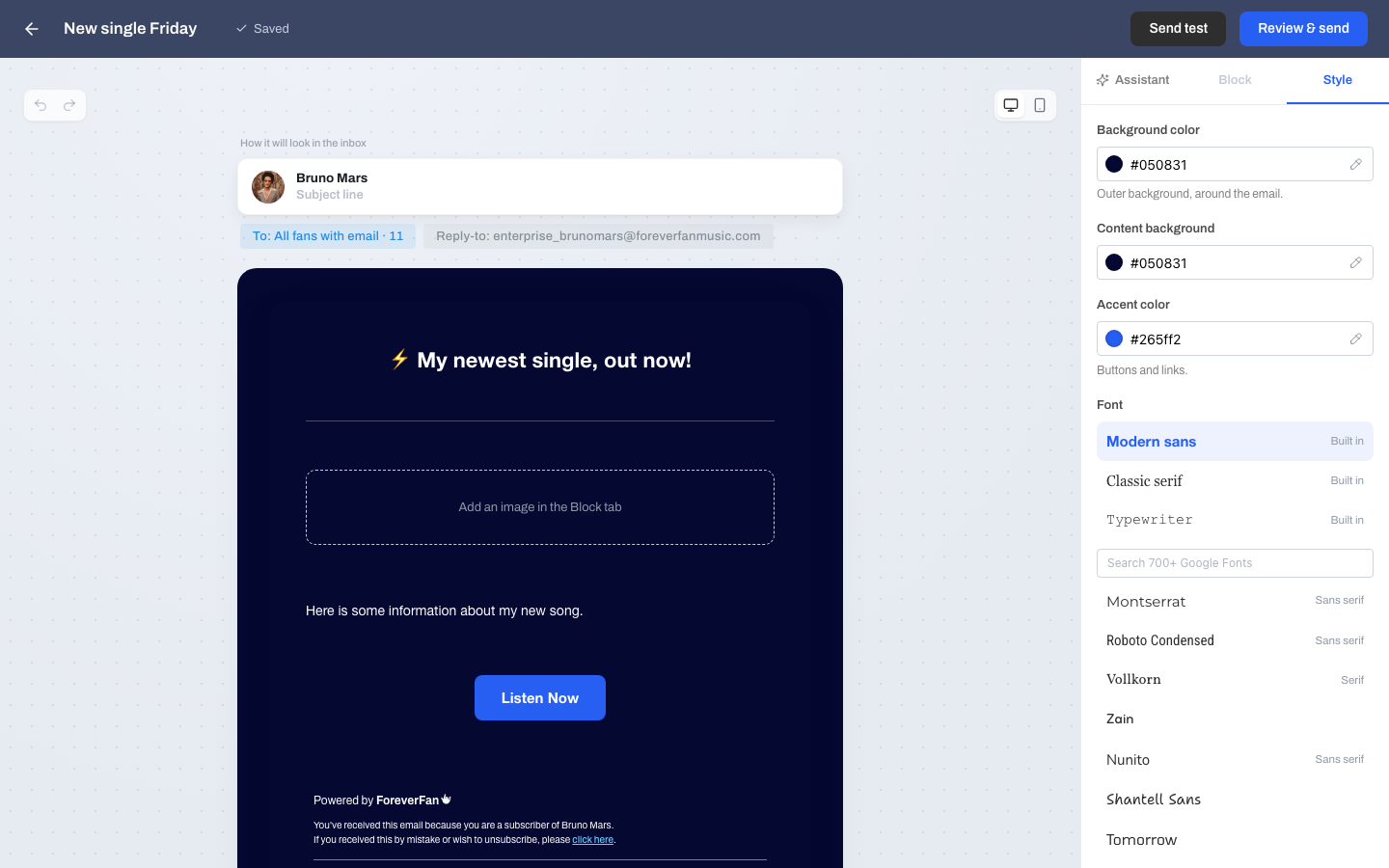
The style panel sets the look of the entire email, not one block. You can set the background color, the content background, an accent color, and the font. There are a few built-in font choices plus a large search if you want something specific.
## Autosave
You do not need a save button. The composer saves your changes automatically a couple of seconds after you stop, and a small indicator at the top shows Saving, then Saved. Your campaign name at the top is editable too, right in place.
## The writing assistant
The assistant panel helps with the words. It keeps a running thread, so it remembers what you have asked as you go, and it stays put if you reload.
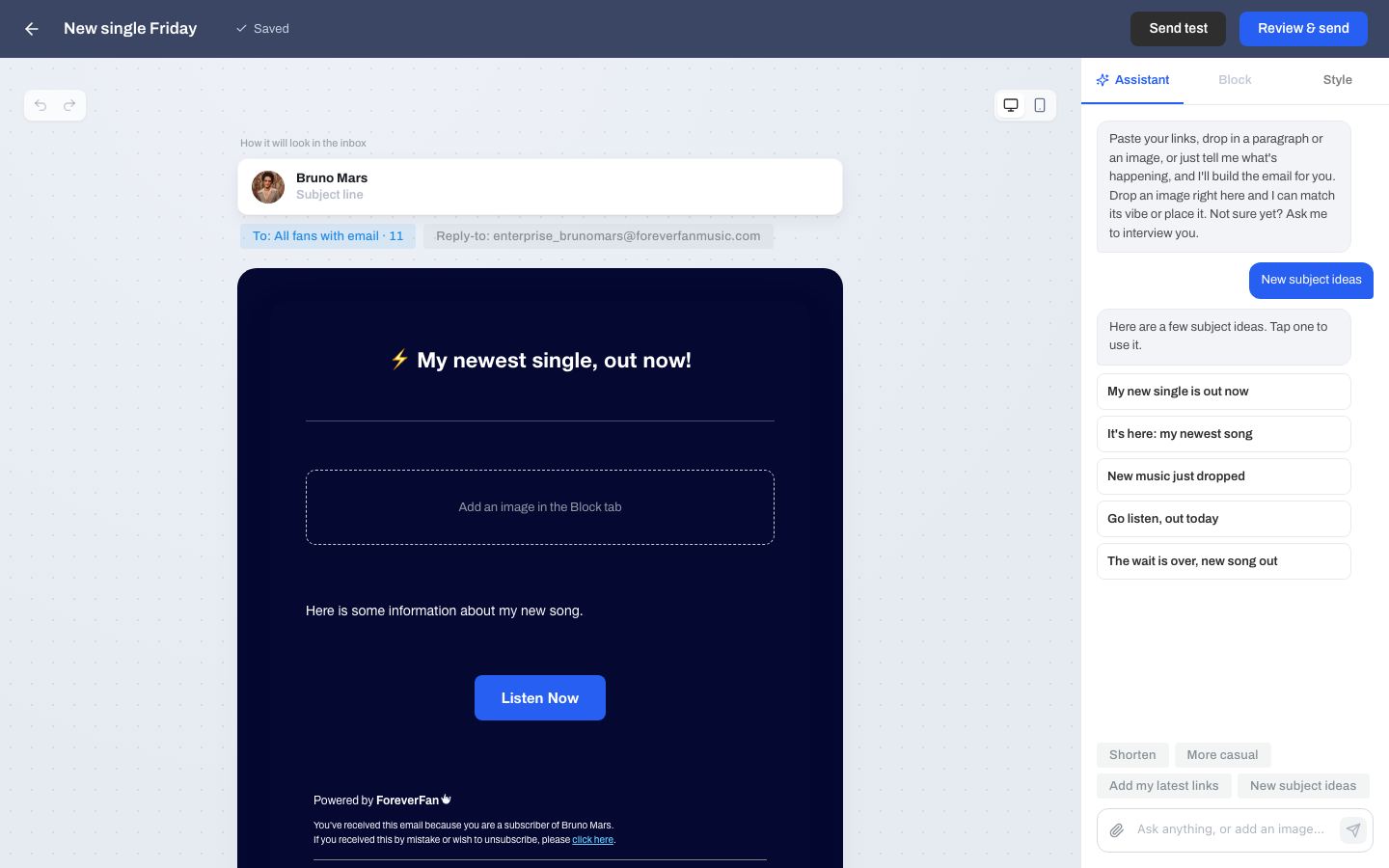
There are quick actions you can tap:
* **Shorten** trims the copy down.
* **More casual** loosens the tone.
* **Add my latest links** works your recent links into the email.
* **New subject ideas** suggests subject lines, which come back as options you can click to use.
You can also just type what you want, for example "make the opening line warmer," and attach an image. The assistant works on the whole email, or on a single block when you have one selected.
## Next
When the email looks right, choose who gets it.
{% content-ref url="/pages/hKVZSu8gXE134FZgDVw3" %}
[Choosing Recipients](/email-campaigns/choosing-recipients.md)
{% endcontent-ref %}