> For the complete documentation index, see [llms.txt](https://help.foreverfanmusic.com/llms.txt). Markdown versions of documentation pages are available by appending `.md` to page URLs; this page is available as [Markdown](https://help.foreverfanmusic.com/getting-started/creating-your-account.md).
# Creating Your Account
The four steps from your email address to a live artist profile.
Setting up ForeverFan takes about five minutes. You enter your email, pay, get a sign-in code, and then build your artist profile. Here is each step.
## 1. Enter your email
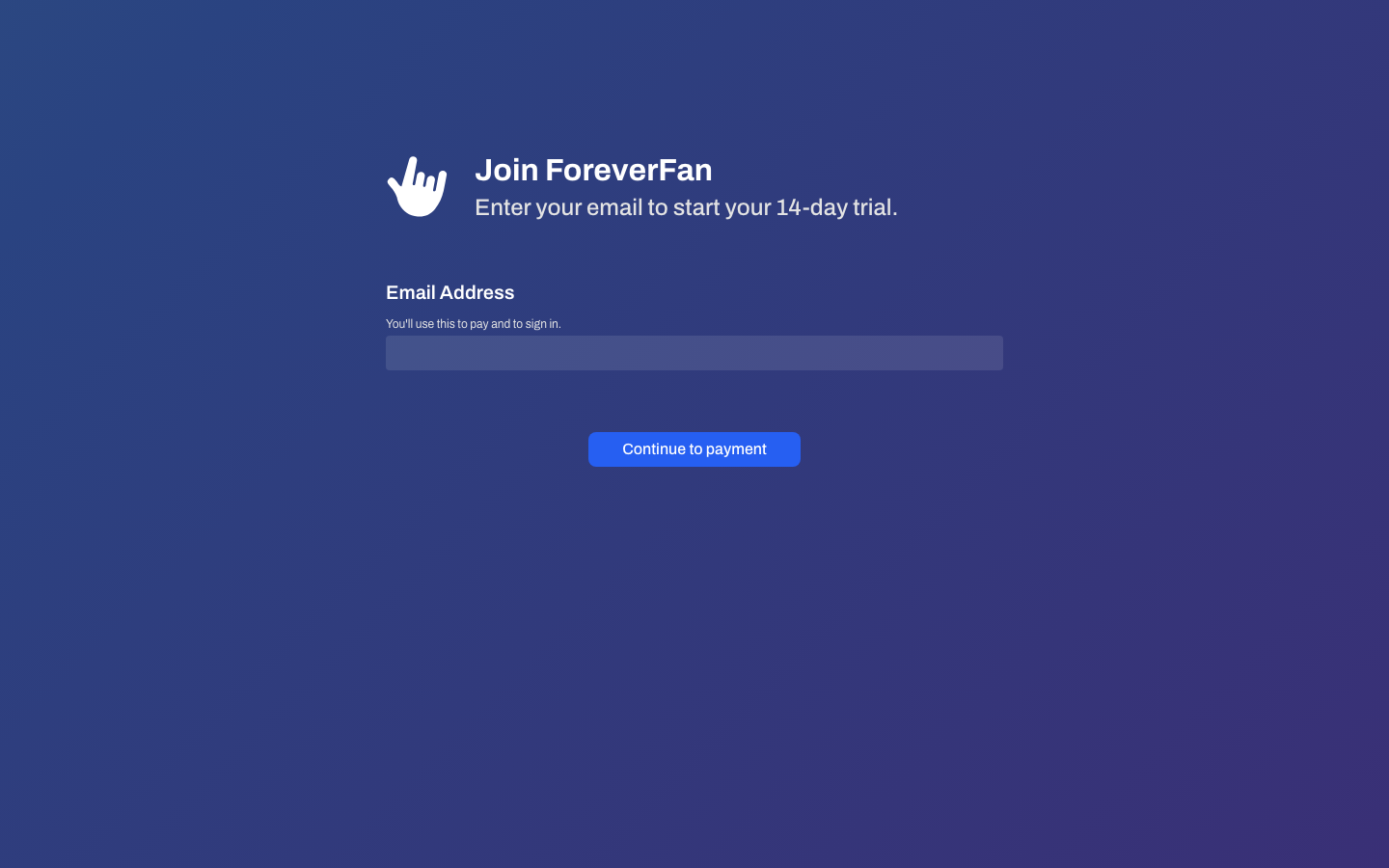
On the signup page you give us one thing: your email address. This starts your 14-day trial.
## 2. Pay through Stripe
Next you set up billing through Stripe, which handles the card details. ForeverFan never sees or stores your card information. Your 14-day trial starts here, so you are not charged for the first two weeks.
## 3. Get your sign-in code
There are no passwords on ForeverFan. Every time you sign in, we email you a short code instead. After you pay, we send you your first code so you can get into your account. Just check your inbox and enter it.
{% hint style="info" %}
If a code does not arrive within a couple of minutes, check your spam folder. Signing in always works this way, so it is worth keeping ForeverFan emails out of spam.
{% endhint %}
## 4. Claim your artist profile
The last step builds the profile fans will see. You will fill in a few fields, in this order:
* **Profile picture.** A photo or logo, shown as a circle.
* **Spotify Artist URL** (optional). Paste your Spotify artist link and we will automatically fill in your name and pull in your photo for you.
* **Artist or band name** (required).
* **Your ForeverFan URL.** This is your web address, the link you will hand out everywhere. We fill it in from your name, and you can edit it. We check that it is available as you type.
* **Apple Music Artist URL** (optional).
* **Instagram handle** (optional).
* **TikTok handle** (optional).
Once you submit, we build your mini-site for you in the background and drop you on your dashboard.
### Pick your artist name for your URL, not a song
Your ForeverFan URL is permanent-feeling and goes everywhere, so base it on your artist name, not a release. Use something like `yourartistname`, not the name of your latest single. A song name dates fast; your name does not.
### Your Spotify and Apple links must point to your artist profile
When you paste a Spotify or Apple Music link, it has to be your **artist profile** page, not a song or album. That is how presaves know who to save and follow.
A correct Spotify link looks like:
`https://open.spotify.com/artist/...`
A correct Apple Music link looks like:
`https://music.apple.com/us/artist/...`
{% hint style="warning" %}
If you paste a song or album link here instead of your artist page, presaves and follows will not work correctly. Double-check that the link says `/artist/` in it.
{% endhint %}
### If you don't have a Spotify or Apple profile yet
That is fine. Both links are optional, so you can leave them blank and finish setting up.
The one thing to know: until you have a real Spotify or Apple artist profile, Forever Presaves cannot automatically follow you, because there is no profile for fans to follow yet. Once your profile goes live on those services, email us at and we will add it to your account.
## Changing your details later
Your artist name, your ForeverFan URL, and your Spotify or Apple connections are not things you edit yourself after setup, because they need a quick check on our end. To change any of them, open **Settings** and use the request option there, or email .
## What's next
You now have a live mini-site and an empty audience waiting to fill up. Here is what to do first:
{% content-ref url="/pages/CzV2EQcl2MYcppbk5mvU" %}
[Your First 30 Minutes](/getting-started/your-first-30-minutes.md)
{% endcontent-ref %}