> For the complete documentation index, see [llms.txt](https://help.foreverfanmusic.com/llms.txt). Markdown versions of documentation pages are available by appending `.md` to page URLs; this page is available as [Markdown](https://help.foreverfanmusic.com/links/link-analytics.md).
# Link Analytics
See how any link is doing, from top-line views to who voted and who RSVPed.
Every link has its own detail page that shows how it is performing. Open a link from your links list to get there. What you see is tuned to the kind of link it is, so a poll shows votes, a presave shows saves, and a tour link shows RSVPs.
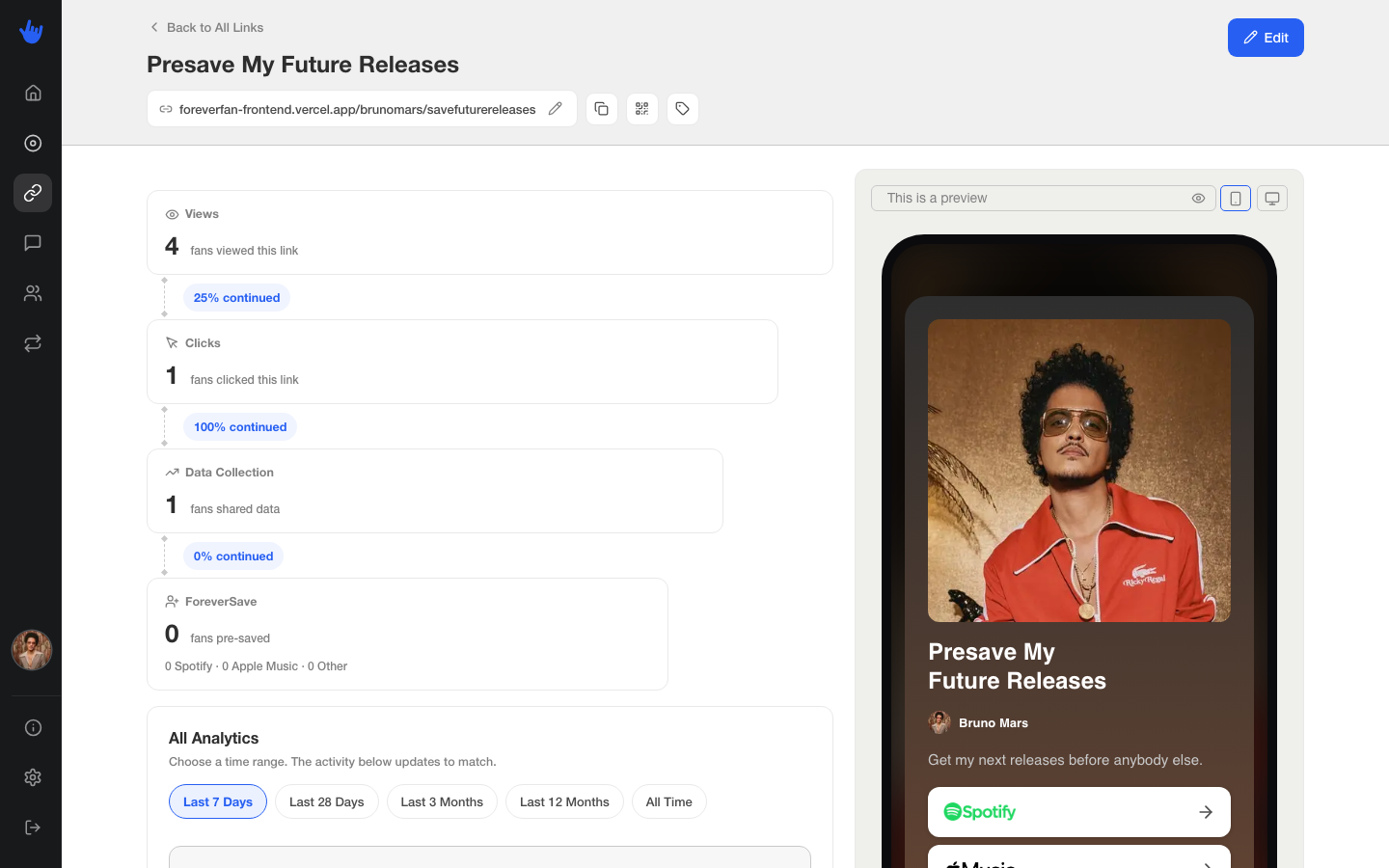
At the top you get the basics for the link: its URL with a pencil to edit the ending, a button to copy it, a QR code, and a way to edit its tags.
## The stat tiles
The tiles at the top summarize the link at a glance. Every link shows:
* **Views**: how many times the page was opened.
* **Clicks**: how many times a fan clicked through.
* **CTR**: clicks as a share of views.
Some link types add their own tiles:
* **Funnel** links add **Funnel Completed**, plus a last-28-days figure.
* **Poll** links add **Votes**.
* **Forever Presave** links show a funnel instead of a single number. It steps down from Views, to Clicks, to Data Collection, to ForeverSave, with the percentage kept at each stage and a breakdown across Spotify, Apple, and Other. That is the quickest way to see where fans drop off between opening the page and actually saving.
## Widgets for each link type
Below the tiles, each link type shows what is relevant to it:
* **Streaming and presave** links show the streaming destinations fans clicked, so you can see which services they chose.
* **Poll** links show the results, with each option ranked by votes.
* **Tour** links show ticket destinations and your top RSVPs.
* **Funnel** links show funnel activity over the past 28 days.
## All Analytics
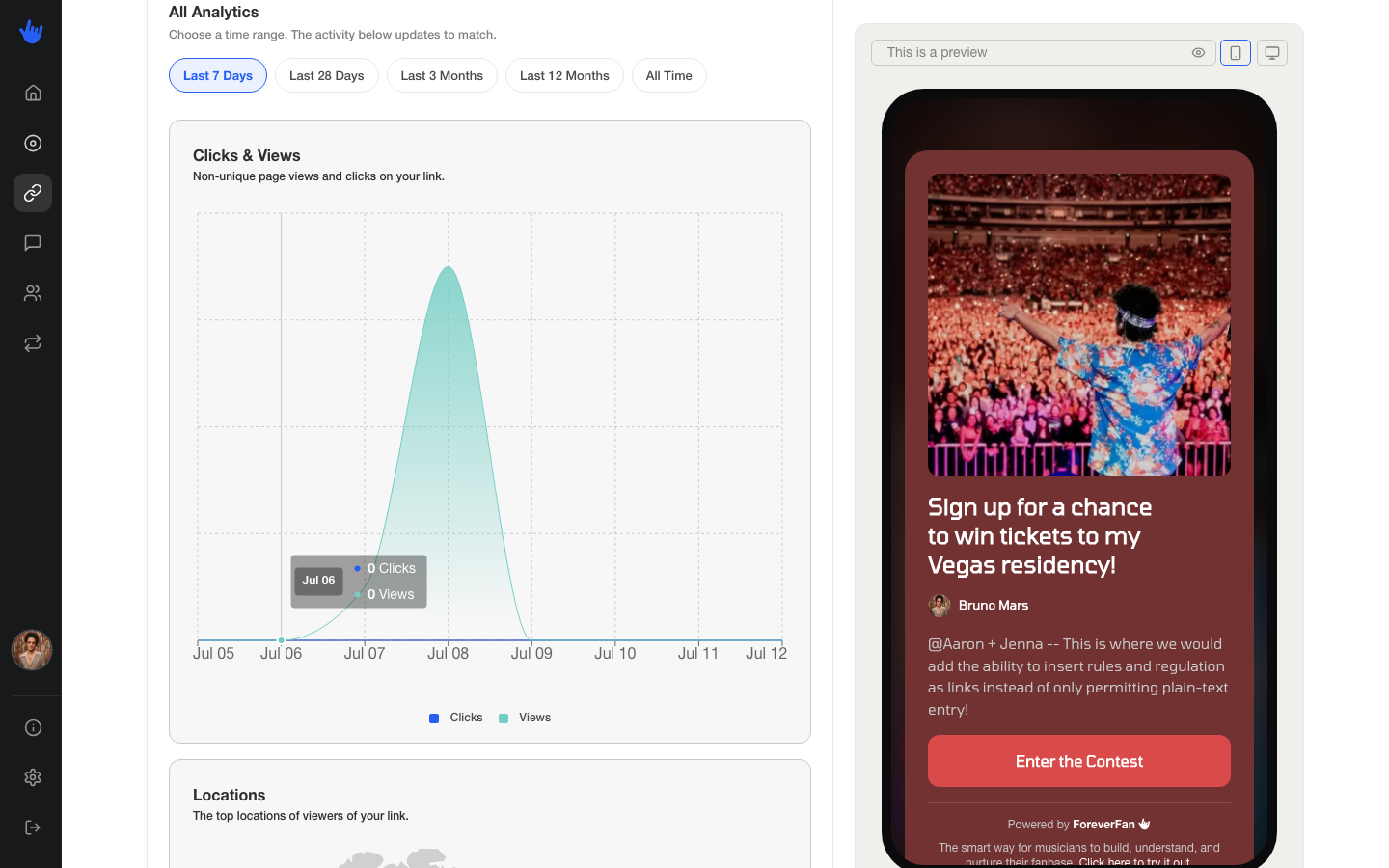
The **All Analytics** section goes deeper. Pick a time range from the chips at the top (Last 7, 14, or 28 Days, 3 Months, 12 Months, or All Time; it opens on Last 7 Days). The grid below breaks the traffic down by:
* **Locations**: a world map of where your viewers are.
* **Sources**: the top places your clicks came from.
* **Top Cities**: your busiest cities, ranked.
## From a stat to the actual fans
Numbers are useful, but the people behind them are more useful. Some widgets let you jump straight into your audience filtered to the fans a stat is about. On a poll you can **see who voted** for an option, and on a tour link you can **see who RSVPed**. Each one drops you into your audience with the filter already applied, ready to tag or message. Opening your audience this way is part of the paid features.
## Deleting a link
When you delete a link, it stops working for fans right away. The address goes dead, so anyone who taps an old copy gets nothing.
Your dashboard is different. The link does not disappear from your history: its detail page still opens, with a note that the link is deleted and its old numbers and analytics intact. You just cannot edit it or send fans to it anymore. So deleting is safe for keeping records, but it is not reversible for fans, and the URL it used to hold is freed up.
## Related
* [Forever Presave Links](/links/forever-presave-links.md)
* [Tour Links](/links/tour-links.md)
* [Filters and the Map](/your-audience/filters-and-the-map.md)