> For the complete documentation index, see [llms.txt](https://help.foreverfanmusic.com/llms.txt). Markdown versions of documentation pages are available by appending `.md` to page URLs; this page is available as [Markdown](https://help.foreverfanmusic.com/sms-campaigns/sending-a-text.md).
# Sending a Text
Pick your recipients, write your message, and send now or schedule it.
Sending a text takes three steps: choose who gets it, write it, then send it or schedule it for later. A preview of the fan's phone sits right there the whole time so you can see exactly what they will get.
## Step 1: Pick your recipients
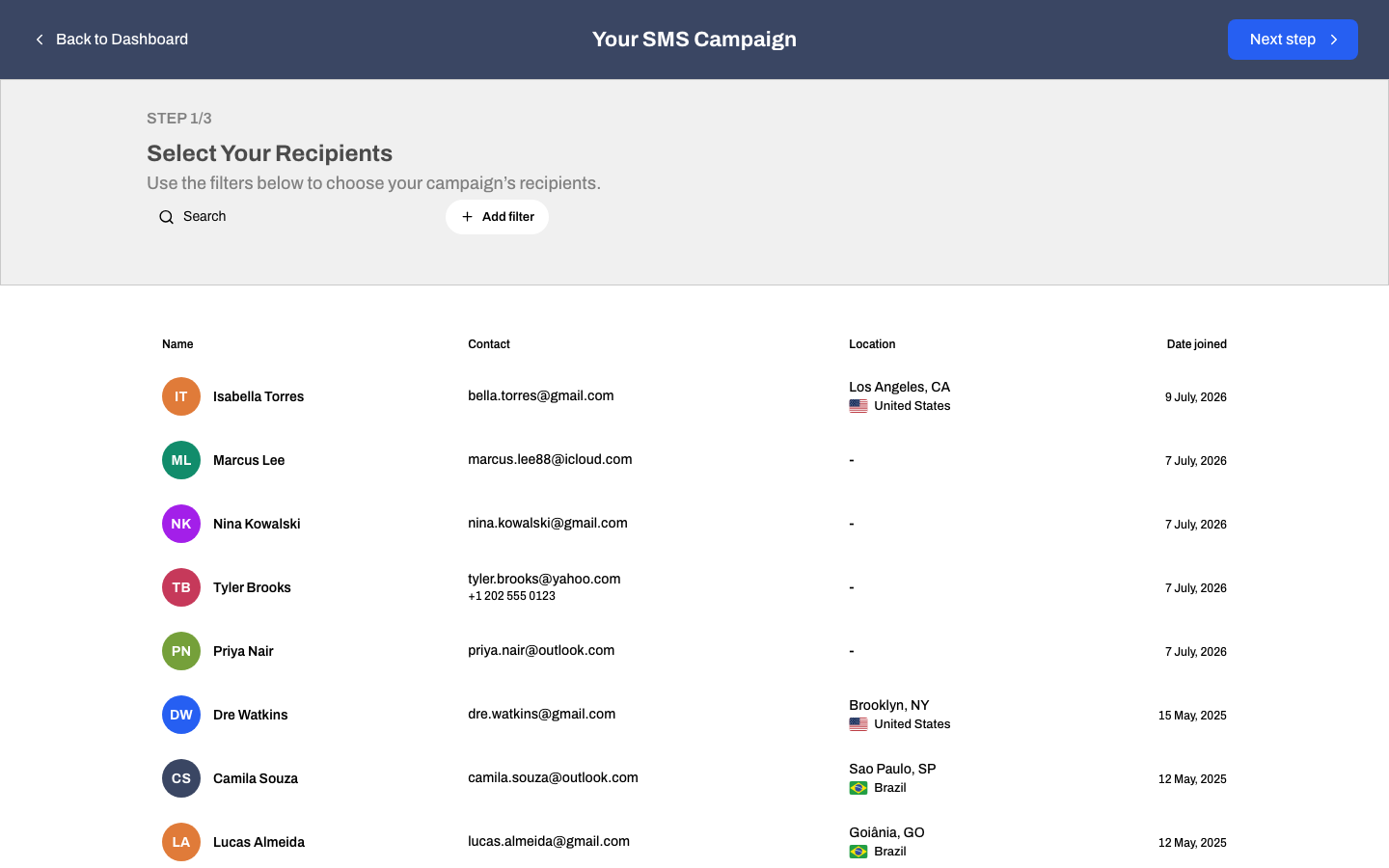
Start by choosing who the text goes to. You can send to everyone with a phone number, or narrow it down with the same filters you use everywhere in your audience, so you can text just the fans in one city, or just the ones with a certain tag.
Only fans who have a phone number on file can receive a text, so those are the only ones counted. You cannot move on until at least one fan is selected.
## Step 2: Write the message
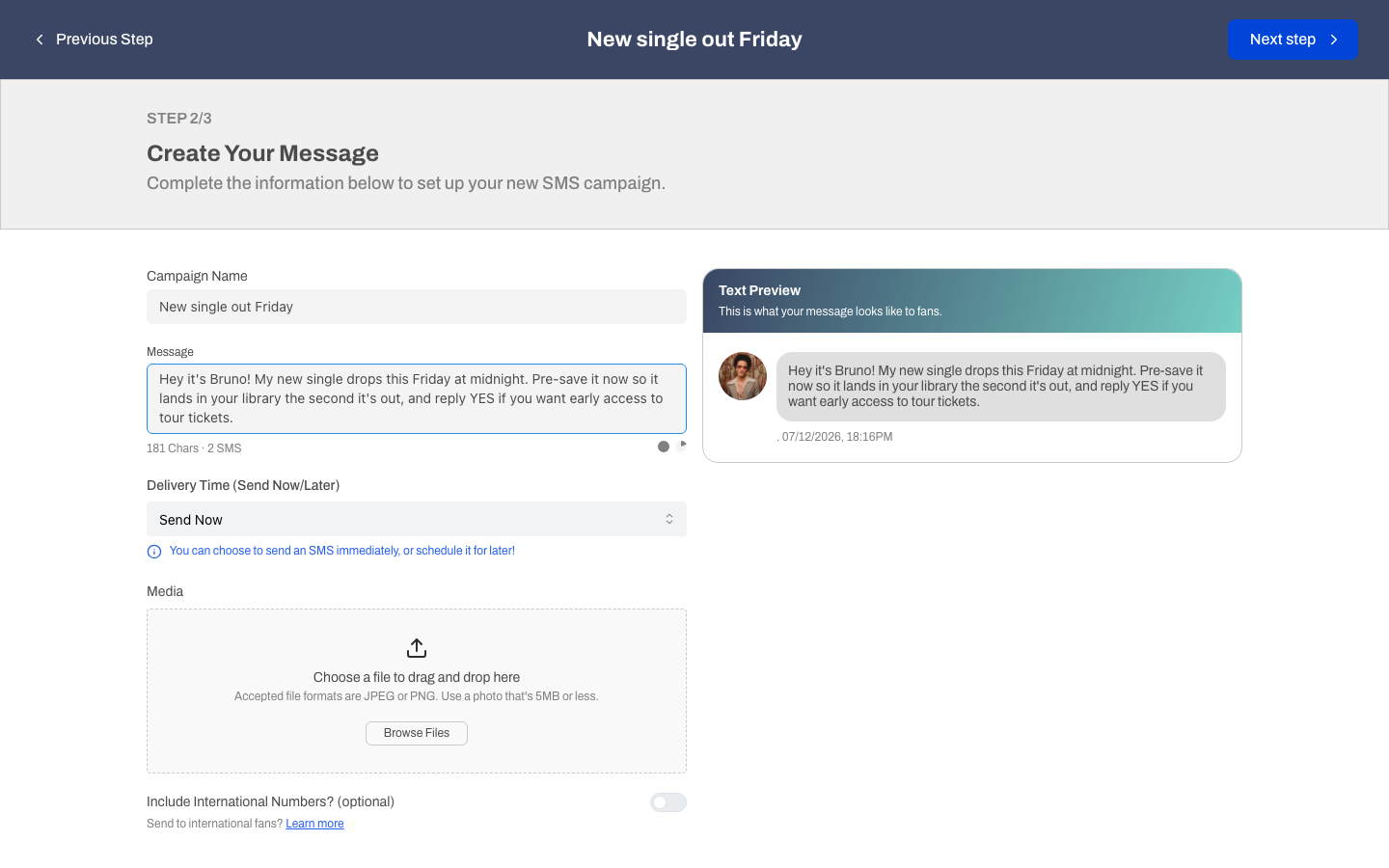
Give the campaign a name for your own records, then write your text.
* **Message**: up to 1600 characters. As you type, a counter shows how many characters you have used and how many **segments** the text will take.
* **Attach an image**: you can add a picture if you want one to go along with your words.
### What a segment is
A text is billed in segments. A short, plain message is one segment. Longer texts, and messages with emojis, split into more than one segment, and each segment uses a credit. The counter under your message shows the segment count as you write, so you always know what a text will cost before it goes out.
### International numbers
If any of your fans have numbers outside the US, flip the **Include International Numbers** switch to send to them too. Leave it off and the text only goes to domestic numbers.
### The phone preview
Beside your message is a live preview of a phone screen showing your text the way a fan will see it, image and all. Watch it as you type to make sure everything reads the way you want.
## Step 3: Send now or schedule
Choose when the text goes out:
* **Send now**: the text starts going out within about 30 minutes.
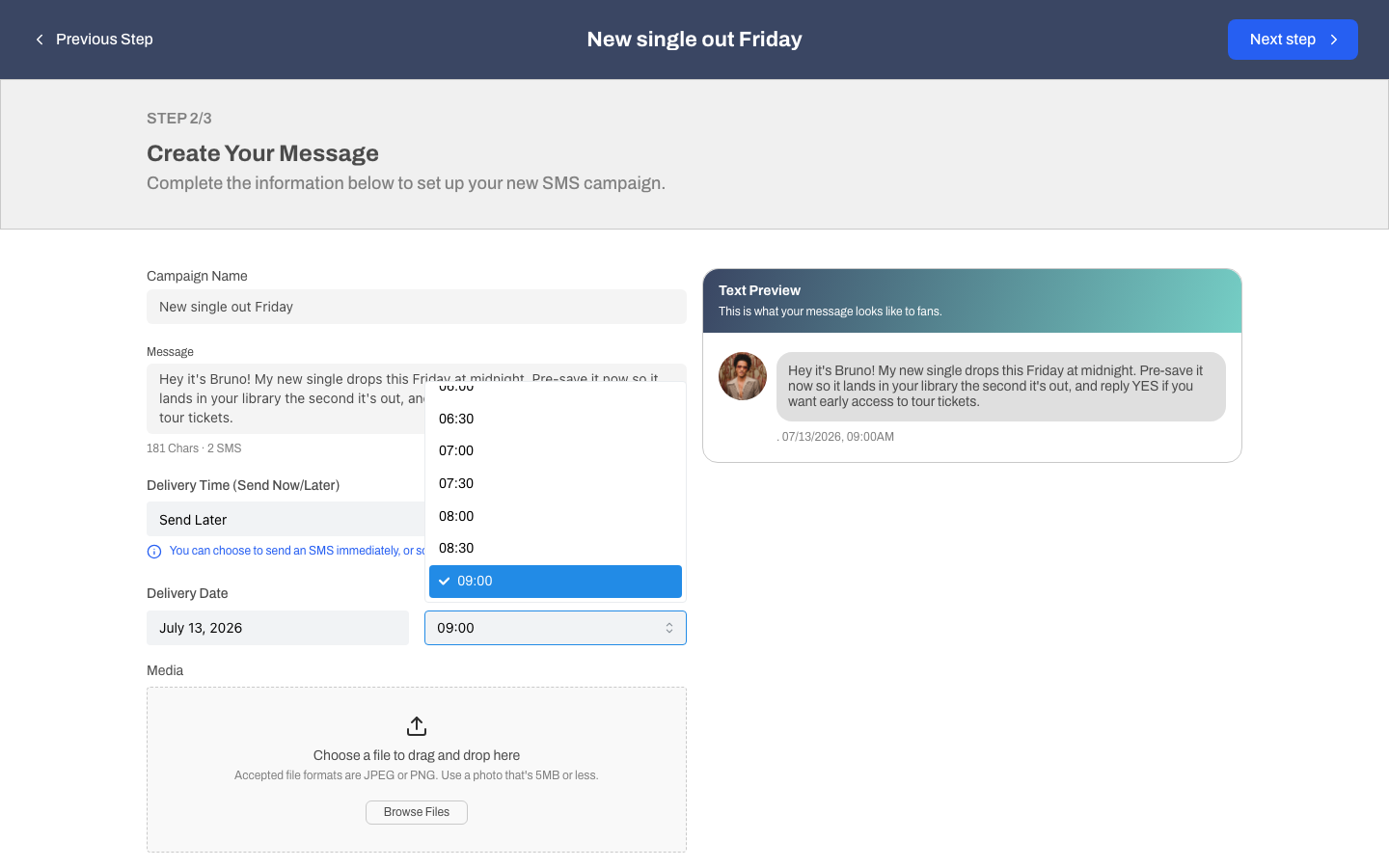
* **Send later**: pick a date and time. You can schedule up to 180 days ahead, and you choose the time in 30-minute steps, in your own timezone.
The last screen is a review: your message, who it is going to, and when. Give it a look, then send.
## Cancelling a scheduled text
Scheduled a text and changed your mind? Open the text from your SMS list and cancel it any time before it sends. Once a text has started going out, it is on its way and can no longer be pulled back.