> For the complete documentation index, see [llms.txt](https://help.foreverfanmusic.com/llms.txt). Markdown versions of documentation pages are available by appending `.md` to page URLs; this page is available as [Markdown](https://help.foreverfanmusic.com/your-mini-site/mini-site.md).
# Your Mini-Site
Your mini-site is your link-in-bio home page, built for you the day you sign up.
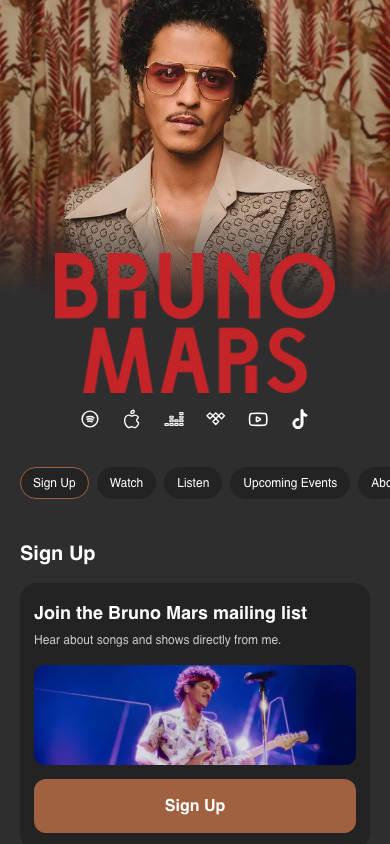
Your mini-site is the page fans land on when they tap your link in bio. It holds your banner, your name, your bio, a row of quick links to the places you already live online, and as many content sections as you want to add underneath.
You don't build it from a blank page. When you sign up, ForeverFan creates your mini-site for you and fills in what it can from your artist profile. From there it's yours to shape.
## Where to find it
Open **Mini-Site** from the sidebar. That opens the landing page for your mini-site, which is the home base for everything about it.
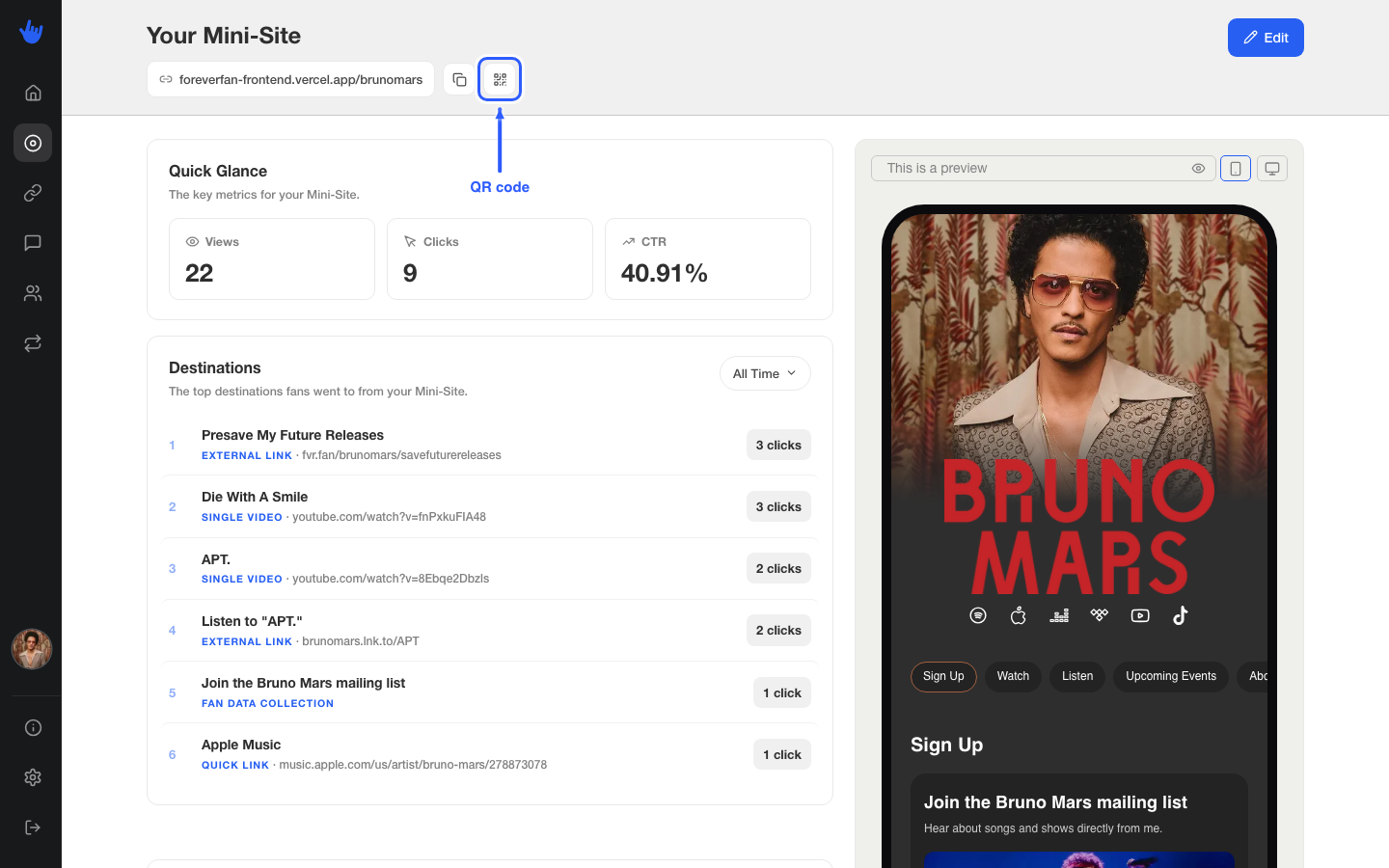
At the top you'll see your ForeverFan address with a few buttons next to it:
* **Copy** grabs the URL so you can paste it into your Instagram bio, your TikTok, a caption, anywhere.
* **QR code** gives you a scannable code. Handy for merch tables, flyers, a slide at a show, or the back of a business card.
* **Edit** opens the editor, where all the real work happens.
## Quick glance stats
Under your URL, the landing page shows a **Quick Glance** at how your mini-site is doing: **Views**, **Clicks**, and your click-through rate (**CTR**). Below that you'll find where fans clicked out to, and a fuller analytics section you can set to different time ranges. There's also a live preview so you can see your page exactly as fans see it while you check the numbers.
For the full picture, see [Link and mini-site analytics](/analytics/link-and-mini-site-analytics.md).
## The editor: four tabs
Hit **Edit** and the mini-site editor opens with four tabs across the top. Each one owns a different part of your page, and each has its own help page here:
* **Header** is the top of your page: your banner image, your name, your quick links, and your bio. See [Header, quick links, and bio](/your-mini-site/header-quick-links-and-bio.md).
* **Content** is everything below the header: the sections and blocks that make up the body of your page. See [Content blocks](/your-mini-site/content-blocks.md).
* **Theme** is the look: colors, accent, font, and a couple of layout toggles. See [Design and themes](/your-mini-site/design-and-themes.md).
* **Advanced** is the behind-the-scenes settings: your page title and description for search, plus tracking pixels. See [SEO and advanced settings](/your-mini-site/seo-and-advanced.md).
Your changes save as you go. When you're happy, share your URL and you're live.